Pages

Wednesday, July 1, 2015

10 TOOLS TO POWER CREATION AND PROMOTE ENGAGEMENT IN THE CLASSROOM


You asked, and we’re delivering ISTE 2015 followers!  As promised during our poster sessions, we are writing this post for YOU.  Below you will find ten of our favorite tools we use almost every week to foster creativity and engagement in our classrooms. Be sure to check through archived posts where these are spoken about at length!

These are also in absolutely NO order whatsoever!

PicCollage (FREE app)
This first grader created a PicCollage with photos
and videos of action verbs. 
Created as an app to allow normal people (let’s face it…teachers aren’t normal) the ability to mash several photos together to share on social media.  Teachers, being the devious sort we are, have pirated this app and made it work for them. Bonus is that students can add video in addition to photos.  Take student PicCollage products and incorporate them into their digital interactive notebooks using BookCreator!

Use it for: (Anything your imagination can dream up!)

  • Scavenger Hunts- Finding real-life examples of abstract concepts. 
  • Skill Sorts- Geometric Shapes, Nouns, Digraphs, short vowels, Types of Seeds/Rocks/Whatever, Fiction vs. Non-Fiction, and on and on.
  • Grammar- Photos and videos of students demonstrating parts of speech. 


ChatterKid, ChatterPics (FREE app)
Whoever created this app is a genius.  Not only is it engaging, but once again teachers have found ways to make this app functional in the classroom.  This app allows kids to take photos of real-life objects or grab photos from the web and make them come to life.  Kids get 30 seconds to record and then have the options to jazz up their creations with a variety of stickers, frames, filters, and text. Pair this app with their digital interactive notebooks to make them more authentic!

This cutie is creating a ChatterPix to share interesting facts
she gleaned from an informational text about Ireland.
Use it for: 

  • Recording facts they’ve learned from informational text.  Ex. A book about elephants…grab a photo of an elephant and make it talk about itself!  Make this part of an animal project where students create a QR zoo for their peers to enjoy!
  • 30 second retellings.  Get them down the main idea of a text in 30 seconds or less!
  • Phonics fun.  30 seconds to name as many words in a phoneme family and more!
  • Spelling shorts.  Have them spell as many words as they can in 30 seconds!


Book Creator (paid app)

 Click Me to Find out How!Yes, this app is paid.  BUT…if you’re going to buy one app that will totally revolutionize your classroom…buy this one!  We're going to link you to our lengthy blog post about how to create interactive notebooks using this favorite.  Some of its best features are its workflow capabilities.  There are many options for sharing out including iBooks, ePub/video/PDF files, and more. You won’t regret it! 

Click the app image to the right to go to that blog post!

GoNoodle (web-based)
Want to cut down on wasteful transitions?  Kids stuck inside for recess for days on end?  Need a solution for PE when you just ran out of creative steam for the week?  Want to just have a little F-U-N? GoNoodle is your solution.  This database will be a kid and teacher favorite in no time as they sing, chant, dance, balance, and otherwise exercise their way through quick, engaging brain break activities.  Have a favorite YouTube educational video you enjoy? Add it to your personal account and never spend precious time searching for it again.  Our personal faves?  Anything by the KooKooKangaroo guys.  


BrainPop & BrainPop Jr. (paid subscription, web-based)
This is our go-to for short, engaging, content-rich videos created solely for kids.  Bump it up by taking the hard or short quizzes, playing the related games, or checking out the Storymapping component.  At this time, story mapping is only available for BrainPop, but GOOD NEWS!  Brittany and I were a part of a focus group at ISTE that got to see and give input on this feature for BrainPop Jr.  Trust us…you’re going to LOVE it!  Even if you can’t snag a paid subscription, students can take advantage of the Movie of the Day! You might just luck out!

Coding for Kids (web-based & app platforms)
Coding and programming continues to be a hot word in the edtech community.  Why? Understanding the process behind and using the critical thinking skills it requires allows kids to expand on not just their tech-savvy, but their creativity as well.  If you’re afraid that you just don’t know enough about coding to teach kids…stop worrying.  These no-fail websites will have your kids from zero to coding in minutes.  We also encourage you to call in the experts on this one, too.  Skype or bring in a coder/programmer.  Let kids see a neat perspective on why knowing computer language is important to them!  

Oh…even the littlest of learners can get into this! 

Try out:
www.tynker.com (app version as well)
or the HopScotch app

PodCasting
Allowing students voice and choice in what information is important to them is a powerful way to engage.  We like the free app Voice Record Pro, but also check out BossJock or Garage Band for more technical endeavors.  Create digital “newsletters” for your parents through the kids’ perspective.  Tip:  Allow them to listen to several different types of podcasts out there so they can hear what’s out there.  

Toca Builders (paid app)
Warning: Toca Builders is
HIGHLY engaging!
This kid-friendly version of Minecraft allows students a whole world of creation and fun.  We’ve even used it to do spelling, addition/subtraction stories, and more!  Have students build a layout of the school or redesign a playground.  The possibilities for creative play are endless. 

iMovie (paid app)
This is one of those heavy-hitter apps that is so versatile regardless of student age and ability.  This is a great app to smash with others that we’ve mentioned above or ones like keynote, DoodleBuddy (for illustrations), and more, This tool is great for project products or fun. Try out the Trailers option to connect with literacy!   

A step-by-step tutorial “how-to” post is coming soon detailing how to use this app with kids. Student samples will be included. Be sure to check back!

Stop Motion Animation
We certainly don’t do stop motion animation projects every week, but when we do…kids love them!  There are a variety of tutorials available on YouTube that will walk you through the process regardless of the medium or tech tool your kids have access to.  For us, the intermediate ages can handle iMovie (easier if accessing Mac version vs. the app).  The smaller kids use the app MyCreate.  There is a lite version if you want to check it out first.  This is much more kid-friendly.  You may also check out iMotion. 


We hope you found a tip, trick, tool, or two that ignites an idea to use in your classroom.  Connect with us below in the comments or via Twitter if you want more!  We'd love to hear what YOU want to read about!


Tuesday, June 30, 2015

A Glimpse Into the Kindergarten PBL Classroom

Tiffany and I have been lucky enough to spend the week at ISTE in Philadelphia!  My kindergarten students traveled to the City of Brotherly Love to present on a few of the PBL projects we have completed.  For your enjoyment, here is a video highlighting a few of those projects.


Tiffany and I will be back to blogging regularly when we get back from ISTE.  We have a lot to talk about!


Wednesday, April 22, 2015

Looking Back and Jumping Forward

You may have noticed a lag in posts for a couple of months...we sure did!

(Tiffany will take a lot of the blame as she went back to work after a three month maternity leave!)

Here are a few things we were up to in the edtech world outside of our in-class responsibilities:

2015 Spring Blogger Meet-up in French Lick, IN

We were fortunate to escape for a two night get away sharing and learning with over 100 amazing, blogging educators from all over the United States.  We were able to share our quick tips and tricks in three table sessions during the event.  Always a pleasure!

From Left: Tiffany (holding Baby Micah), Brittany, and friend/blogger Marissa  Zimmer.
Photo taken at the French Lick Resort, French Lick, IN. (Hometown of Larry Bird!)
GoNoodle Headquarters 

Brittany was fortunate to tour the GoNoodle Headquarters in Nashville, TN with a small group of educators and bloggers.  The features coming soon are brilliant!

What a dream place to work! We can't wait for all of the new features to roll out!
Indiana Department of eLearning Science/Social Studies Digital Writing Cohort

We are currently writing digital content for the Indiana Department of eLearning with 22 other educators across the state of Indiana.  At our first meeting, we got to meet State Superintendent, Glenda Ritz!

Superintendent Ritz was extremely inspirational and very supportive of the eLearning movement!

That's where we've been...here's where we WILL be coming soon!  

Presenters: June 9th iPossibilities Center Grove, IN
https://ipossibilitiesandbeyond2015.sched.org

Spotlight Speakers: June 23rd & 24th Digipalooza Scottsburg, IN
http://digipalooza.org

Poster Session Presenter: June 28-31  ISTE Philadelphia, PA
www.iste.org


We will add dates as we add them! Unfortunately many conferences are happening while our school is still in session due to snow days.

Oh...and we promise more posts now that things have calmed down! 


Tuesday, April 21, 2015

Facilitating Creativity: Relinquishing Control

I was mid-conversation with a colleague today about the evolution of projects in the classroom when I had a revelation. Often teachers cling to their tried and true classroom projects and assignments not for the fear of change so much as for the fear of relinquishing control.  Bingo.

Our society still embraces the old school picture of a classroom.  Desks neatly in rows facing the front of the classroom where a smartly dressed teacher writes clean, even handwriting.  Students intently watch the teacher and copy her every stroke into their crisp, spiral bound notebooks filled with meticulously and laboriously taken notes about a subject.

I used to be that teacher.

Now on a happy day, students are digging up earthworms which dangle from their little hands as they smile for the photo their classmate is taking of them.  Special areas around the room are filled with busy learners wearing headphones listening to informational text about any number of high-interest content. Still yet, a few learners are singing silly rhymes while a buddy records them.  I am usually flitting from group to group.  Checking in.  Asking questions.  Every now and then I stop the class and say something like, "Boys and girls! Everyone take a look at what he's doing here!"

Sometimes I wonder what the hallway passerby must think about my class.  It's funny how the word "structure" can be both a compliment and a negative.  I'd like to call my class structured, but in more of a 21st Century way.  We are busy, but everyone has a task to do.  Students are chatting, but engaged.  I have essentially two "silent" times in my day...independent reading and the minute and a half it takes during timed tests.  That's a glorious minute and a half.

Yet within all that busy-ness and movement, students are learning.  Sure they are learning important content deemed necessary by the powers that be in the state house, but more than that...they are learning HOW to learn. They are the experts, and I drive them and push them toward becoming independent learners who seek out their own outcomes.  It's not because I'm too lazy.  Heavens no. I don't have the luxury of laziness.  It's just that I want THEM to have control of their learning.

Here's why.  The world is changing more rapidly now than ever before in the history of the earth.  Technology created today is already on its way to becoming outdated tomorrow.  Yet if I teach students the crucial business of LEARNING, this doesn't matter.  If they have the skills of analyzing, making connections, and seeking answers...they will SUCCEED!

That's why we need to take a step back.  Analyze our own need to formulate our students' learning experiences so exquisitely that we miss the point.  It isn't about checking off all of the little boxes and making 15 slides in a Keynote presentation to our liking.  It's about giving them the freedom to create.  Mess up.  Discover.  Wonder.  Be unique.

Because within that process, we will find that we have truly succeeded in facilitating something much greater than we ever hoped for.

-Tiffany


Monday, April 20, 2015

Digital Interactive Notebooks: Spruce Up Your Literacy Instruction

If there is one digital tool that's become our go-to this school year, it's been Book Creator.  Last summer we were researching ways to incorporate digital interactive notebooks into our literacy blocks.  All of our research kept pointing us back to Book Creator!

Originally we relied upon graphic organizers as our sole-source of material for these notebooks, but the ways in which they have evolved has been amazing. With traditional interactive notebooks, students create hands-on pieces that involve a lot of coloring, cutting, and gluing.  The purpose is that their work becomes not only three dimensional in look and feel, but that the learning itself goes deeper.  That's exactly what we wanted to achieve with our digital versions.  Simply annotating graphic organizers was not enough for us or our students.

As the year has progressed, we began to incorporate more and more into our weekly notebooks. Students often inspired these additions as well as discovery of new apps to utilize. Students are now including photographs, images, etc. from KidRex, recording video of themselves completing fluency tasks, photographing station work, incorporating ChatterKid images, and much more.

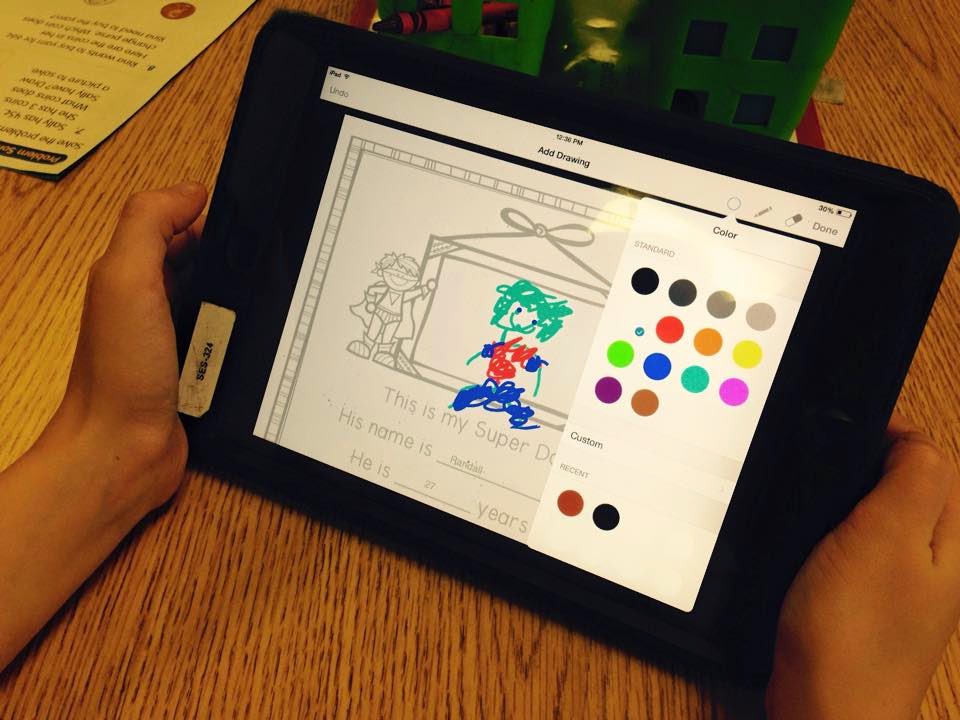
This is what a student page may look like before:

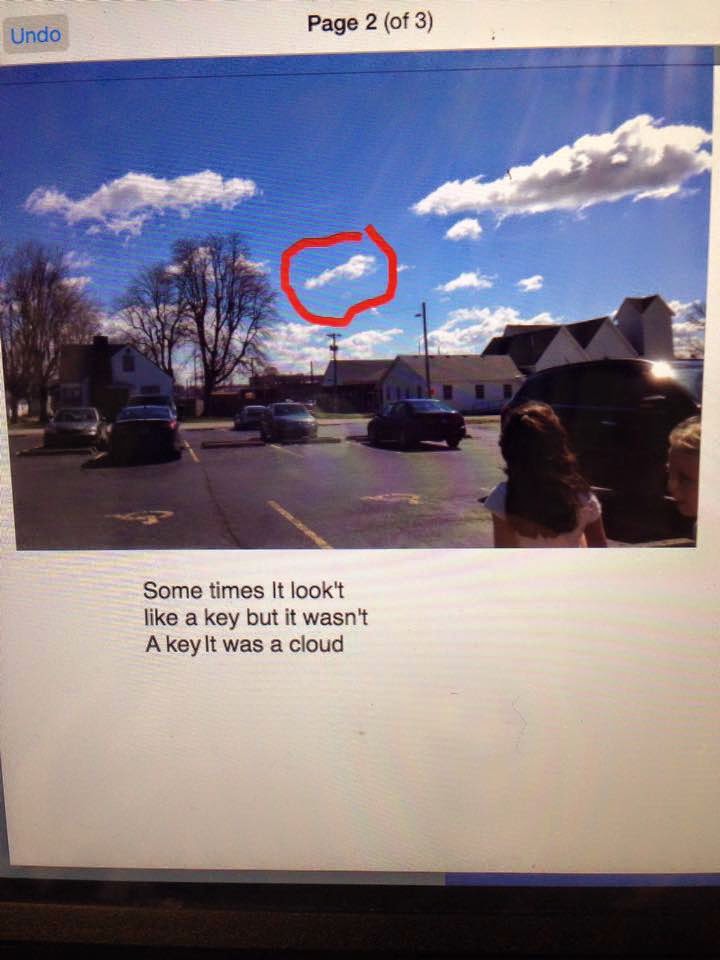
Anytime students can find or take real-time photos, it connects themselves to the text in a meaningful way.
Incorporating multiple apps within Book Creator is a major plus.
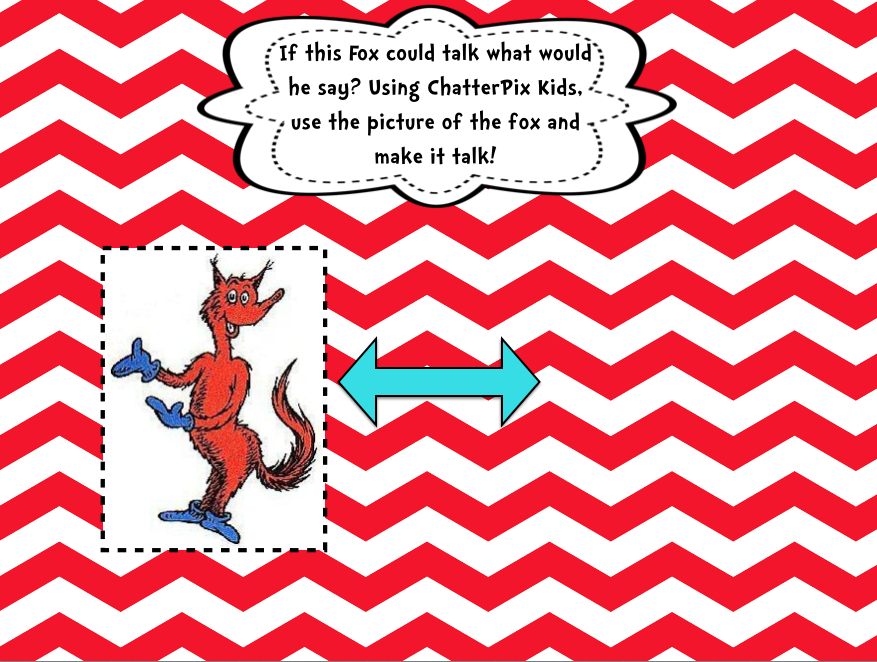
This page asks students to use ChatterKids to make the Fox speak!
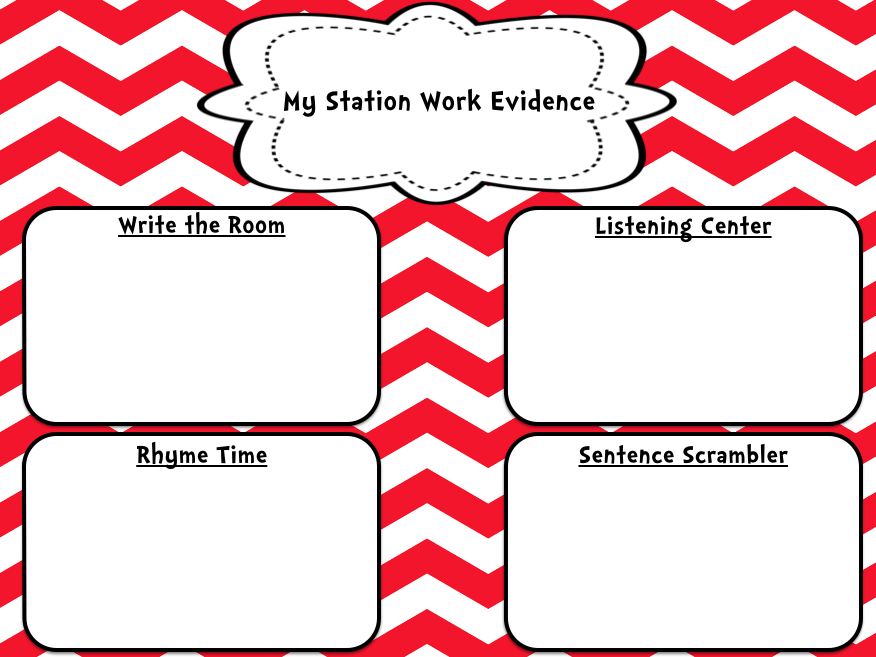
Students take photos or record videos of themselves throughout the week at station.
This makes grading a breeze as well as presents instant accountability for the student. 

Eye-pleasing covers make it fun! 
So how do we build these interactive notebooks?  How do the students receive them?  How do we check their work?  

1) Building the Notebook

We choose to build our notebooks from our laptops using Keynote, but whatever you may use (PowerPoint, Photoshop, etc.) will certainly work!  We build each slide using a variety of graphics that make the page pleasing to the student.  Sometimes we choose to go full color, and other times we leave a little more white space for creation.  This really depends on the project as well as the time limits we are working with!  Many of our pages are created from scratch at this point, but we also incorporate quality work we may find elsewhere such as TPT.  Teaching is all about cheating as they say...if someone has already done it well...why reinvent the wheel?

Each week we incorporate a variety of literacy tasks including, but not limited to:

Fluency (have students read a passage while recording themselves)
Comprehension (graphic organizers that utilize photographs, drawings, text, etc.)
Vocabulary
Text-to-self/world Connections
Station Work

Once we have built the slides we want to add to their digital notebooks, we export the slides as images.  This is easily done by going to File then Export to...  Select Images.  This will prompt you to save your images.


In order to begin the next step, you will need to save your image files to a storage system easily accessible on your iPad.  We like GoogleDrive, but you may also like other cloud-based apps like DropBox.

You will need to open and save these image files to your Camera Roll on your iPad before beginning the next step.

2) Building the Book Creator Book

From your iPad, open the Book Creator app and select New Book.


We prefer the Landscape format as it seems to fit our Keynote slide images perfectly.

From here, creation is easy.  On each page, click the + sign and choose camera roll.  Select the image you would like the students to work on for each page of their notebook.

Resizing is easy accomplished by dragging one corner of the image to fit the screen.


Once you have added all of your images, you are ready to share the book with your students!

2.) Workflow

Select the "share box" as we call it (the box with the arrow shooting out of the top) to export.

You should see what you typically use to share, expedite, or "push" files to students.  Again, we use eBackpack.  Note that iBooks is an option. This is great if you ever want students to publish their work for parents or beyond!

Book Creator will automatically save your creation as an .epub file.  Note that size may become an issue you have loaded your eBook with video files.  Sometimes we incorporate learning videos from BrainPop or other sources for students to view.

Students will simply open the file from your workflow app of choice (Drive, eBackpack, etc.) directly into Book Creator.  When they have completed their work for the week, they will simply follow the same procedures you did above to send it back to you! We love the ease of checking their work quickly at week's end by flipping through their digital notebooks!

3.) Student Creation

We utilize these digital interactive notebooks throughout the literacy block.  Sometimes students add along as we create a class anchor chart (they can even take a photo and annotate with you!), use them during stations (anytime they can record themselves, it's instant engagement), document fluency, and so much more! As you use them more and more, you will discover new and exciting ways to engage your students in literacy tasks!

Above and Below:
Connecting Literacy and Science after reading, "It Looked Like Spilt Milk."


Comprehension Skill: Drawing a photo of the main character.
Resource courtesy: Tech with Jen K-2 Interactive Notebooks
Recording fluency practice to add to their digital Interactive Notebooks. 
Drawing via DoodleBuddy then added to their digital interactive notebook.
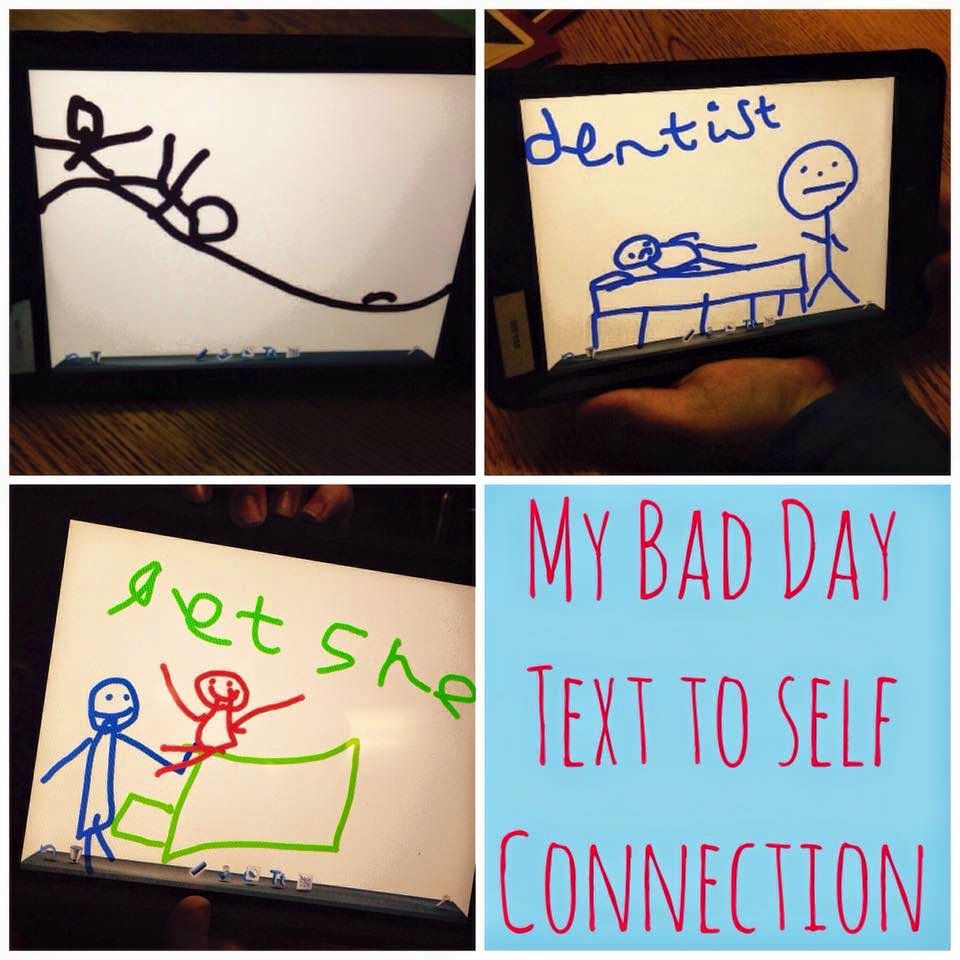
This was after reading "Alexander and the Horrible, No Good, Very Bad Day."
Question, "What does a bad day look like to you?"  
Students have many options when annotating directly in Book Creator.
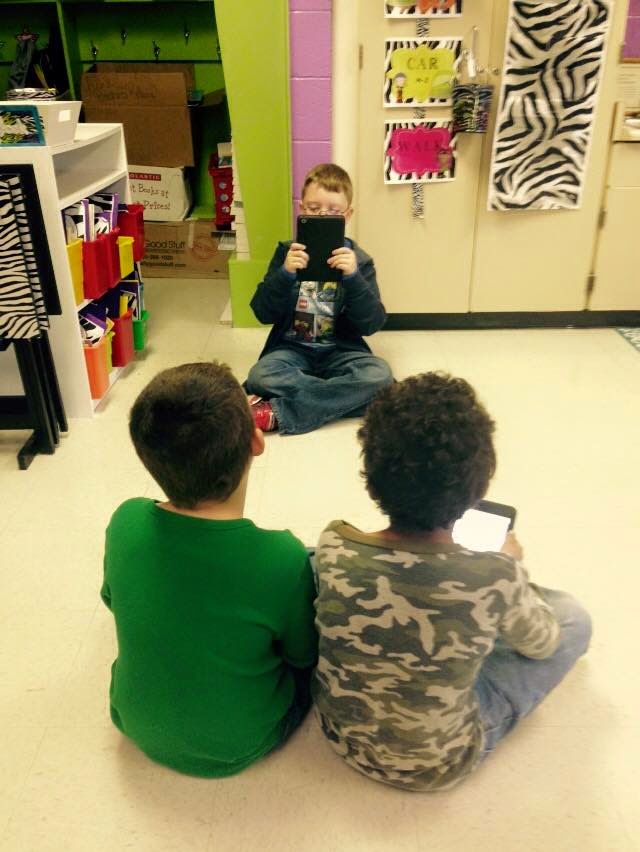
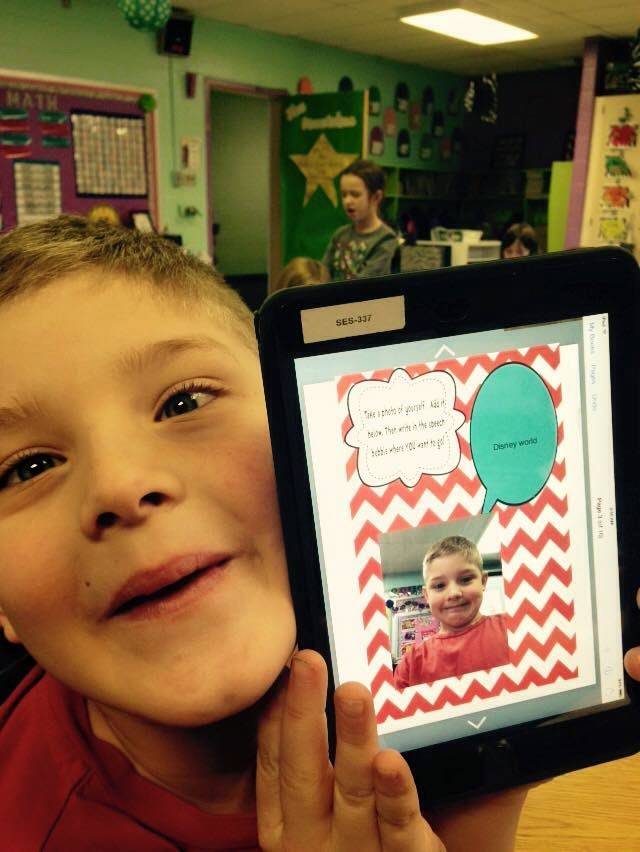
This one loves the camera...instant engagement.
Text-to-Self connections using thought-bubbles.  
Sharing our work with Dads during our annual Donuts with Dads event.
We take ownership in our own learning. 
This is a sample page of where a student may add their fluency video.
We incorporate their fluency text for easy access.
Resource courtesy Christine DeCarbo April Fluency Just Print Pack.

We hope that this post has inspired you to take a new look at the possibilities technology can bring to your literacy block through digital interactive notebooks!  These have truly revolutionized both the workflow and engagement in our classrooms!  Let us know if we can help you further!


Saturday, February 21, 2015

Student Engagement 101: Beyond Substitution

Since we've been off for Snowmageddon 2015, we've had a lot of time to talk about things that are important to us.  One of those topics is student engagement.  

While this is a blog about technology in the classroom, our number one passion is student engagement.

Really, student engagement can occur whether you have devices or not.  

It is our responsibility to engage our students in their learning.  Gone are the days when students could thrive in a skill and drill environment.  Gone are the days where students could sit for long periods of time without movement.  

We're not saying we need to be doing cartwheels all day to keep our students entertained, but it is our responsibility to make sure that our instruction is as effective as possible.

We know there is a need for students to practice key skills learned to show mastery.

But let us pose this challenge:  Instead of having students practice key skills by using a worksheet- what if we have our students create to show mastery.

Since our students have been 1:1, they might come home with 2-3 papers at the most.  We have made a shift to student creation to demonstrate mastery, and we think everyone is learning effectively.

In this series of posts, we will highlight some of our favorite student creation apps and how we use them in our classrooms to enhance our curriculum.

 Book Creator
  iMovie
 PicCollage
The Best of the Rest!

We are looking forward to highlighting our favorite apps with you.


Monday, February 16, 2015

Creativity Isn't Extinct

One of the most common complaints I hear about technology is that it has hampered student creativity to the point where it has almost gone the way of the dinosaur.

Let me offer a few reasons why I think this kind of thinking just needs some tweaking.

1) It's a Different Medium

When I was in elementary school in the late 80s and early 90s (that sounds incredibly old), completing a project meant a serious amount of glue, glitter, and poster board.  I also happen to remember my dad having more than his fair share of involvement in my sister's projects.  (I was far too controlling and perfectionistic even then to let him do my projects.)

Today's kids still love glue and glitter.  Trust me...my classroom floor proves it.  We use it all the time for our craftivities that hang proudly in the hallway.  What has changed most dramatically, is the canvas.  No longer are kids limited to a neat and pristine 30 x 60 sheet of poster board.  Apps/programs like MyCreate, iMovie, Toontastic allow them to make their blank canvas come to life.

For example.  I used to do a great mini-project (as part of a larger PBL umbrella) involving paper plates, brass brads, and markers to show the life cycle of a plant in third grade.  The kids liked them ok, and I basically tolerated them as I have a definitive love/hate relationship with brass brads.  Last year though, we bumped the project using technology.  Using MyCreate, students worked in teams to create the life cycle of a plant using stop motion animation.  Here's the great thing.  Students STILL had to use their hands to build sets and create their play-doh figures for their shoot.  It was a perfect and harmonious blend of technology and old-school.  The BEST part was the take-away.  I had a student who was willing to use his iTunes gift card he got for his birthday to download MyCreate.  He made a lego stop motion movie on his own time at home.  I don't know about you, but that's pretty creative to me. (This project was highlighted in an earlier blog post.)

Technology doesn't always have to replace the old ways, but it can certainly enhance them.

2.) It's All in How You Use It

There are a million and one annotation apps out there, and undoubtedly there is a place in this world for them.  However, if all a student does with their technology in or out of the classroom is annotate worksheets, there for sure isn't much creativity flowing.  After all, I could make cutting and gluing pretty boring, too, if all I had them do was cut out words and put them in ABC order.

Rather, allowing a student to have voice and choice in their project path or learning modality using their iPad or device, can fuel creativity.  I used to do "Choice Boards" for projects, but now I lean more toward the PBL mentality which focuses on student-driven learning.  I may have components of a project where I say what I would like to see, but I try very hard to allow students to express themselves using the method they desire.  Of course, as a first grade teacher I spend a great deal of time at the beginning of the year teaching them different apps/programs so that by the year's end, they have the knowledge and expertise they need to choose their route of learning.

For example, I had one of those "tough kids" last year.  Learning was a struggle for him, and he often found himself in trouble during transitional periods throughout the day.  We had been working on a creative writing piece of some kind and he just wasn't interested.  The creative juices were not only not flowing, but it was like there was a 100 year drought in progress.  I remember holding him back for a few moments when the bell rang for recess to see what I could do to help.  I quickly realized that what I could do to help, was to get out of his way.  After that conversation, he took to his MacBook and created an amazing creative writing piece using a Google presentation format complete with illustrations.  That was a wake up call for me.  Creative writing is only creative if it inspires imagination.

3.) Creativity CAN Be Taught (and Technology is a Beautiful Teacher)

Yes, I wrote that.  Yes, I believe that.  Stop for a moment and think about the most "creative" person you know.  Maybe you thought about yourself.  That's ok!  If you were to make a list of creative-types, I think you would start to see a pattern.  What "creative" people have in common, is the ability to ask the appropriate questions.  Last summer I had the awesome opportunity to hear a keynote from Dave Burgess who introduced me to this idea.  This was probably one of the single most important concepts I learned last year.  Creativity is merely a process of asking the right questions.

When I am evaluating the validity of an app, I don't just look at its face value.  I ask myself a million questions.  What would a student do with this without any guidance?  How could I use this app to teach reading/math/writing?  What other app might pair well with this one?  Then, I test it out.  I have some cute little app testers that happen to live right down the hall.  I will hand them my iPad and say, "Play with this."  I observe.  I ask them questions.  I listen to them...PLAY.  Children don't have to force questions because they happen intuitively.  They just need the opportunity to play.  Some of my greatest ideas for projects have been born through this process.

Lately, my kids' favorite app is ChatterPix Kids.  This is a silly little app that we've highlighted before on this blog (go check it out).  Now teachers across our district are using it in a myriad of amazing ways.  Our music teacher had the students record themselves singing a song for our eLearning "Snow" Day.  My teaching partner across the hall is going to use it in her Black History Month projects.  My class is going to do a series entitled, "If Walls Could Talk."  My son is a second grader, and he recently created a series of puns using this app.  Ex:  He took a photo of our staircase and recorded the words, "Stairing Contest."  I won't even share what he made the toilet say.


So you see, creativity will only go away if we allow it, and technology can be a remarkable medium to fuel a child's imagination and creative juices.  Kids are inherently creative and imaginative creatures.

We just need to get out of their way.

-Tiffany